Free animated email banner maker
Bannerly is a browser-based tool for making animated email banners and email signature GIFs. You get a real editor — logo, text, theme, layout and per-element motion — and you can export a 600 × 150 animated GIF without paying or signing up. This page walks through how to use it properly, what sizes to pick, and the one email client quirk that catches most people out.
Open Bannerly (free) — about ten minutes, exports as GIF, 600 × 150 default, no watermark.
What Bannerly actually does
Most small businesses send hundreds of emails a month and use every one of them as dead space. A banner in your signature turns that into a quiet, repeated advert for whatever you care about right now — a seasonal offer, a new service, a job opening, an event.
Bannerly exists because the alternatives are all bad in different ways. Hiring a designer for a 600 × 150 graphic is disproportionate. General design tools can do it, but you have to know what you are doing and animation is usually a paid feature. Bannerly does one job: a correctly sized, animated banner, ready to paste into email.
Everything happens in your browser. Your banner is stored locally, which is why the editor tells you it "lives in this browser" — nothing is uploaded to make a free export work.
- Send quotes, invoices or enquiry replies and want them to promote something
- Run a seasonal offer and need a header graphic for a newsletter
- Are recruiting and want the vacancy in front of everyone you email
- Have a launch, event or opening date to push for a few weeks
- Want a consistent branded strip across a small team's signatures
How to make an animated email banner, step by step
The editor has three stages across the top — Design, Preview, Export — and a left-hand rail for Logo, Text, Theme, Animate, Layout and Export. Here is the order that gets you a usable banner fastest.
Step 1: Set the size, then the words
Leave the canvas at 600 × 150 unless you have a reason not to — it is the standard email body width and behaves predictably in every major client. In the Text panel you get a headline, a subheading and a call to action, each with its own font, weight, colour and alignment. Aim for a headline under 40 characters, one supporting line, and a CTA of two or three words.
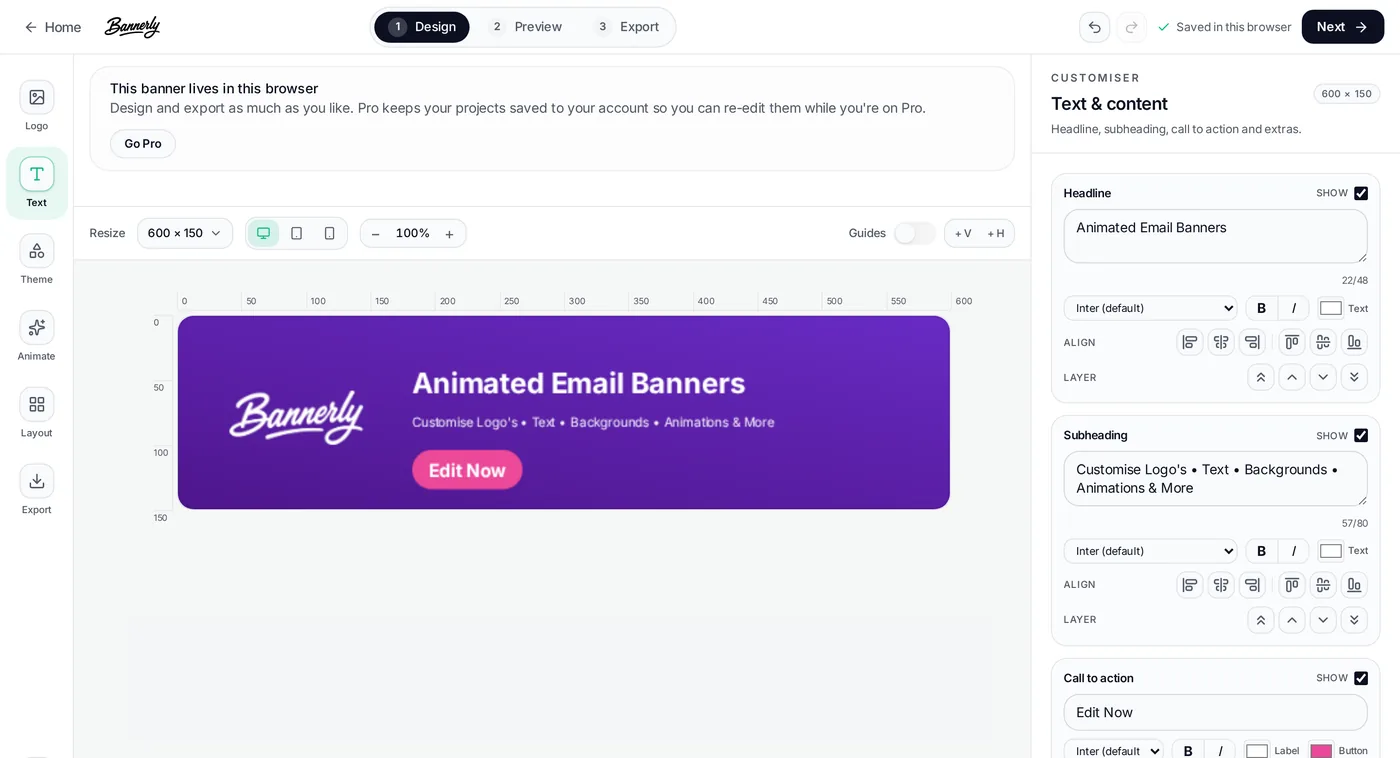
The Design stage: canvas on the left, text and content controls on the right. Step 2: Add your logo and set the theme
Upload a square PNG or SVG logo with a transparent background, then choose alignment. The Theme panel controls background colour, gradient and accent colour, so you can match your brand instead of using a stock palette.
Step 3: Choose motion per element
The Animate panel assigns a motion effect to each element — fade, slide, pop — with speed and delay. Leaving everything on Auto produces a clean staggered reveal. Restraint reads as professional: one moving headline plus a static logo usually beats four competing animations.
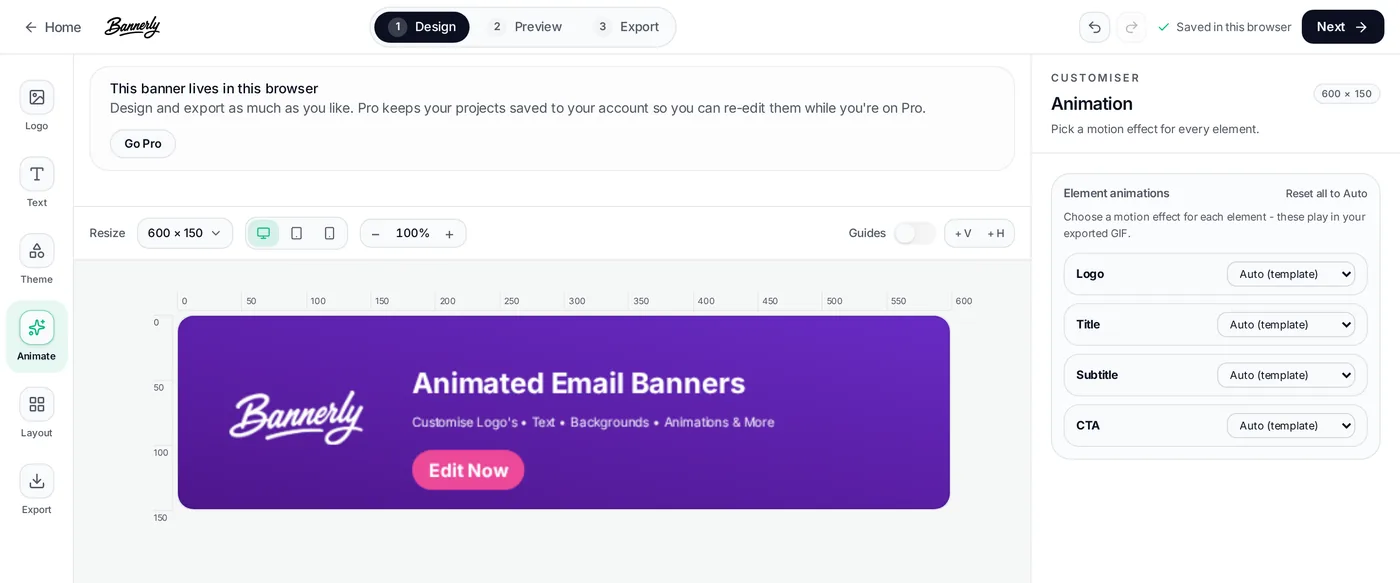
The Animate stage: per-element motion, speed and delay. Step 4: Preview it as an email
The Preview stage renders the banner inside a mock email so you can judge it at the size a recipient actually sees. Check the first frame in isolation — that is what Outlook on Windows will display.
Step 5: Export the GIF and paste it in
Export produces an animated GIF. Add it to your email signature in Gmail, Outlook or Apple Mail, or drop it into a Mailchimp or Klaviyo campaign as the header image. Keep the file under roughly 1 MB and always link the image to the page it advertises.
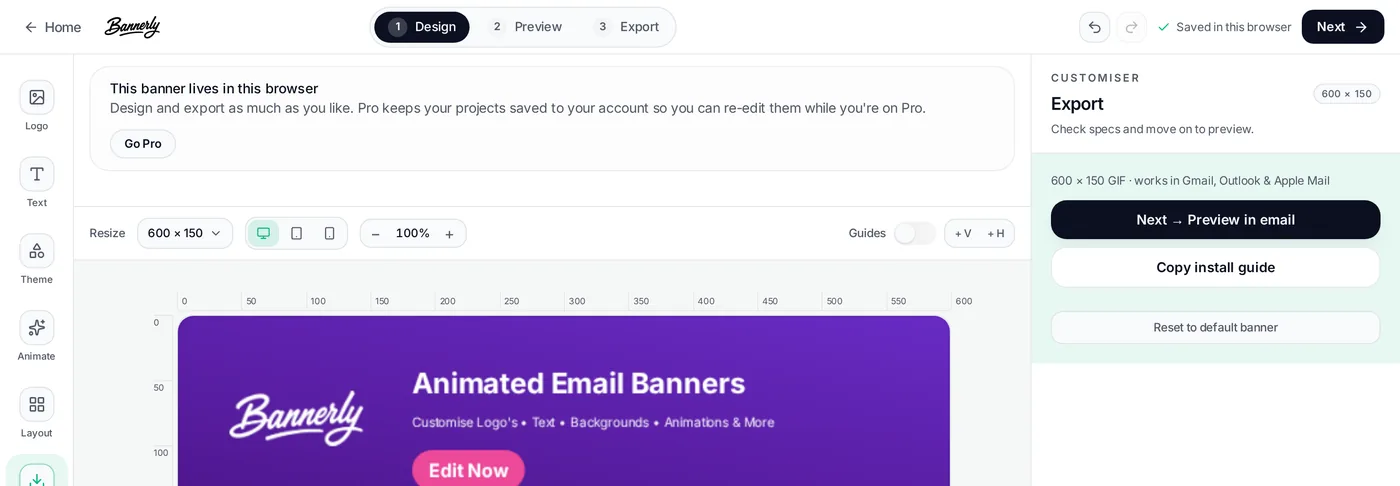
The Export stage: download the animated GIF, ready for email.
Which banner size to choose
| Size (px) | Use | Notes |
|---|---|---|
| 600 × 150 | Standard email banner / signature banner | Safest default. Fits the standard email body width. |
| 600 × 100 | Slim signature strip | Good when the banner sits under a long signature block. |
| 728 × 90 | Leaderboard | Web placements and wide newsletter templates. |
| 1200 × 300 | Newsletter header | Retina-friendly header for campaign templates. |
Five rules for a banner that works
- Put the logo and core message in the first frame — Outlook on Windows shows only that frame.
- One message per banner. A banner advertising three things advertises nothing.
- Keep the exported GIF under about 1 MB so it loads fast and avoids spam filters.
- Always hyperlink the banner image to the page it promotes.
- Refresh the banner when the offer changes — a stale seasonal banner damages trust.
Examples made with Bannerly
Sale banners, product launches, recruitment strips, event promotion and newsletter sign-up banners are the most common uses. Each of these is a single message, a logo and one call to action — nothing more.
Animated email banner FAQs
Is Bannerly free to use?
Yes. You can design a banner and export an animated GIF without paying anything. Your work is saved in your own browser, so you can come back and keep editing. The paid Pro tier exists for people who want projects saved to an account and re-editable across devices — but nothing in the free flow is time-limited or watermark-gated.
Do I need design skills to make an animated email banner?
No. Bannerly is a three-step flow: Design, Preview, Export. You pick a size, drop in your logo, type a headline, subheading and call to action, then choose a motion effect per element. Every element has a sensible default, so the fastest route is to change the text and export.
Where can I use the banner once it's exported?
Anywhere that accepts an image. The most common uses are email signatures in Gmail, Outlook and Apple Mail, campaign headers in Mailchimp or Klaviyo, and promo strips inside newsletters. A 600 × 150 GIF is the safest default for email because it fits the standard email body width.
Will an animated GIF break in Outlook?
Outlook on Windows shows the first frame of a GIF instead of playing the animation. That is why the first frame matters: put your logo and core message in it. Bannerly's default templates are built with that in mind, so the banner still reads as a finished graphic when the animation does not play.
What size should an email signature banner be?
600 × 150 pixels is the standard for a full-width email banner and the size Bannerly opens with. For a slimmer signature strip, 600 × 100 works well. Keep the exported file under roughly 1 MB so it does not slow down loading or trip spam filters on large sends.
How is this related to RapidWebsite?
Bannerly is a separate free tool we share because it solves a real problem for small business owners who need a professional-looking promo graphic without hiring a designer. You do not need to be a RapidWebsite customer to use it, and using it does not sign you up to anything.
Can I use my own brand colours and fonts?
Yes. The Theme panel controls background, gradient and accent colours, and each text element has its own font, weight and colour controls. Upload a square PNG or SVG logo with a transparent background for the cleanest result.
Need the website behind the banner?
A banner only helps if it points somewhere convincing. RapidWebsite builds professional small business websites, live in 24 hours, for £27.99/month with hosting, domain and SSL included. Talk to us or see pricing.